
Atlas provides easy-to-use tools for drawing and editing geometries directly on the map.
Tools Available
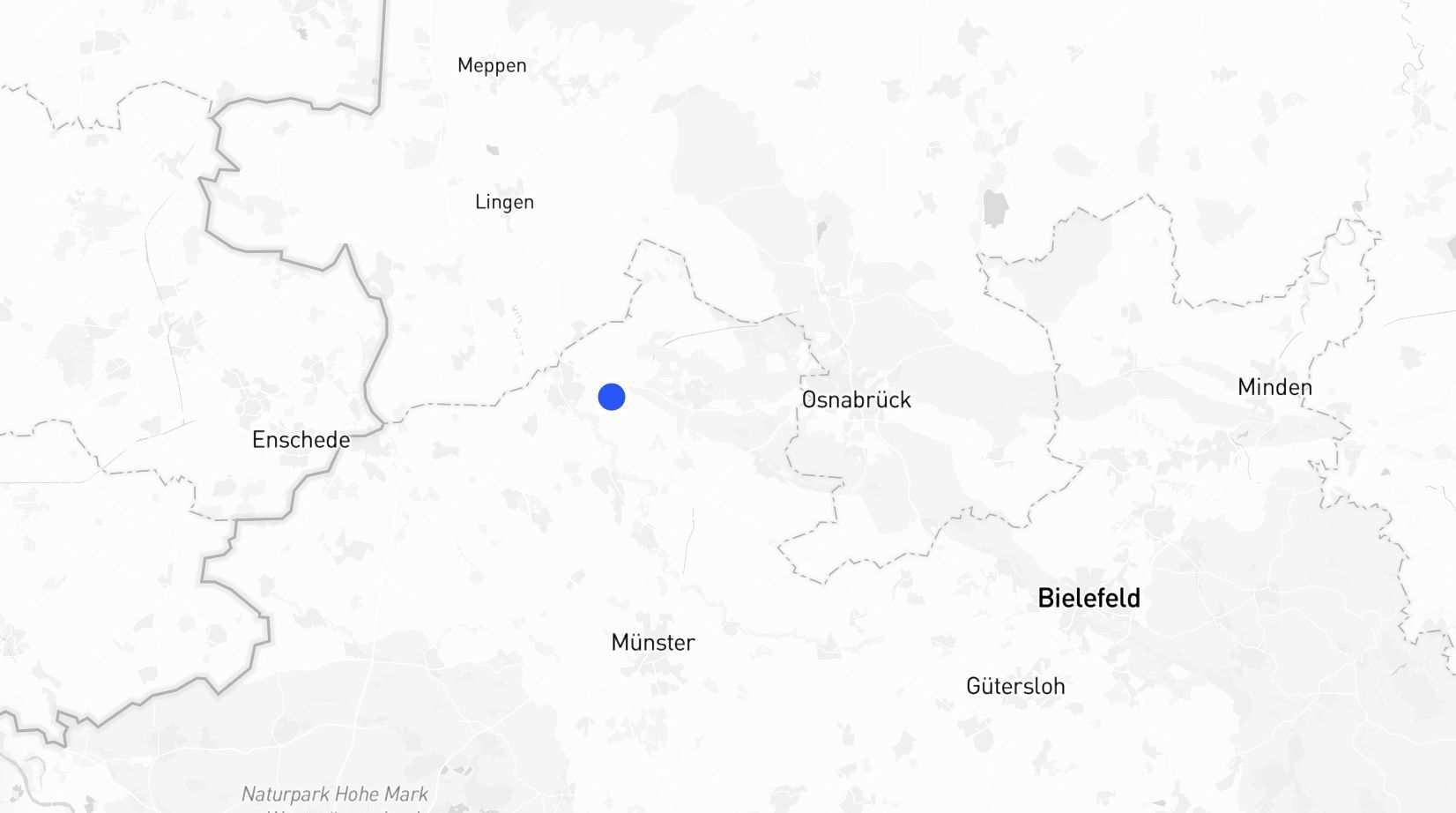
1. Point P
- Place a single marker on the map.
- Use this to mark a specific location or point of interest.
2. Line L
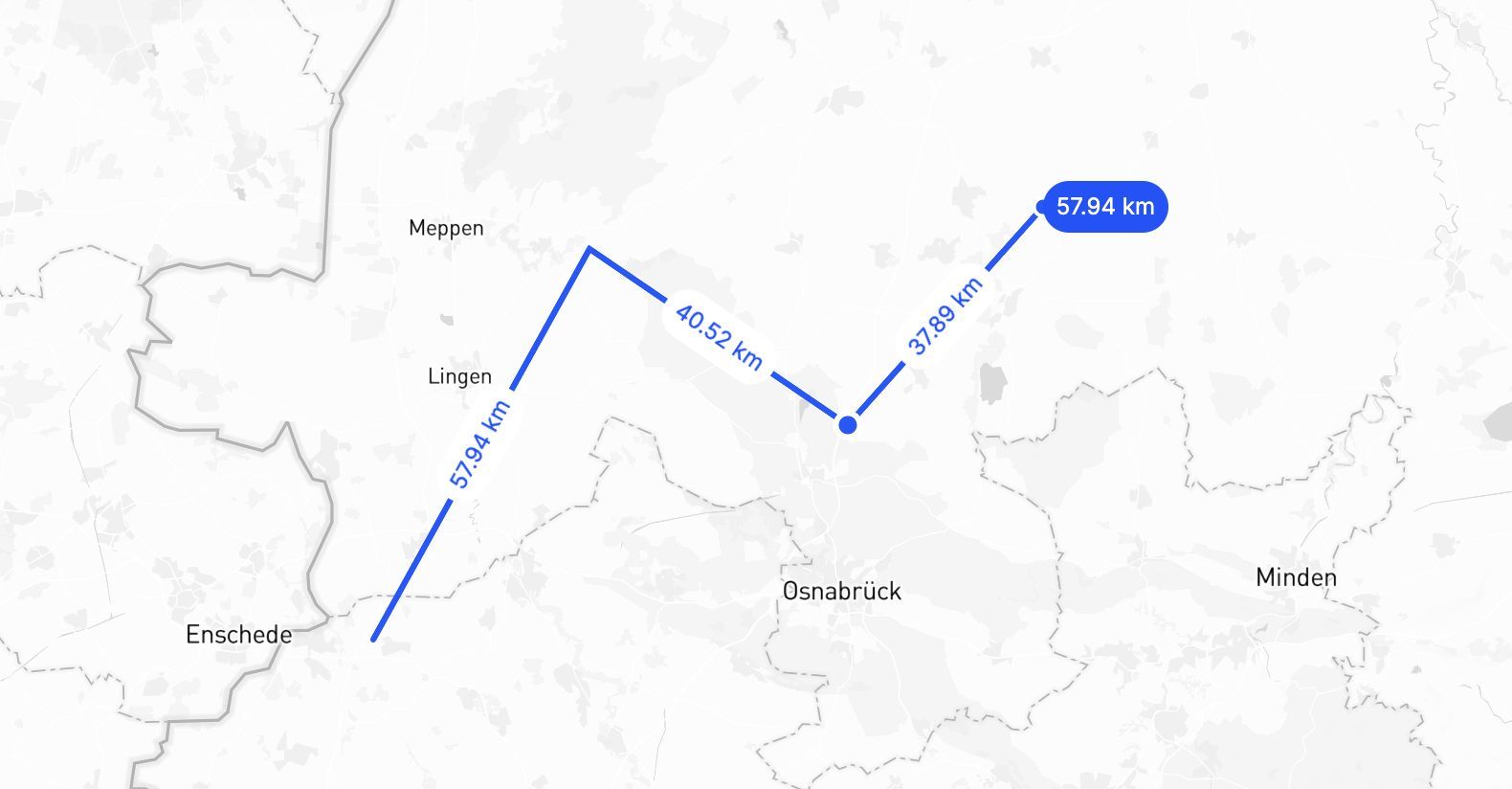
- Draw straight or connected lines.
- Perfect for paths, routes, or measuring distances.
3. Polygon SHIFT + P
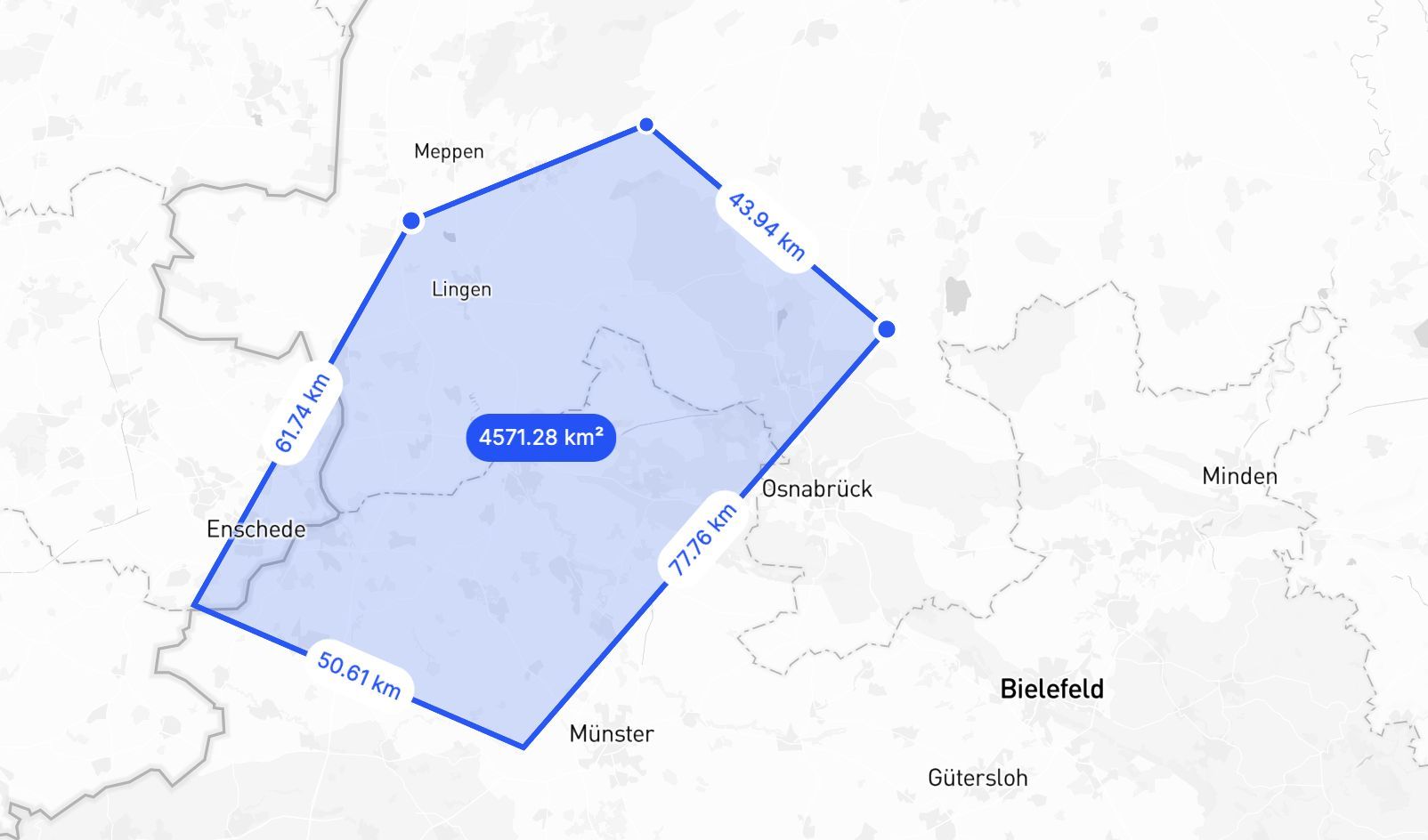
- Create custom shapes by connecting multiple points.
- Use this for defining areas like regions, boundaries, or zones.
4. Circle SHIFT + C
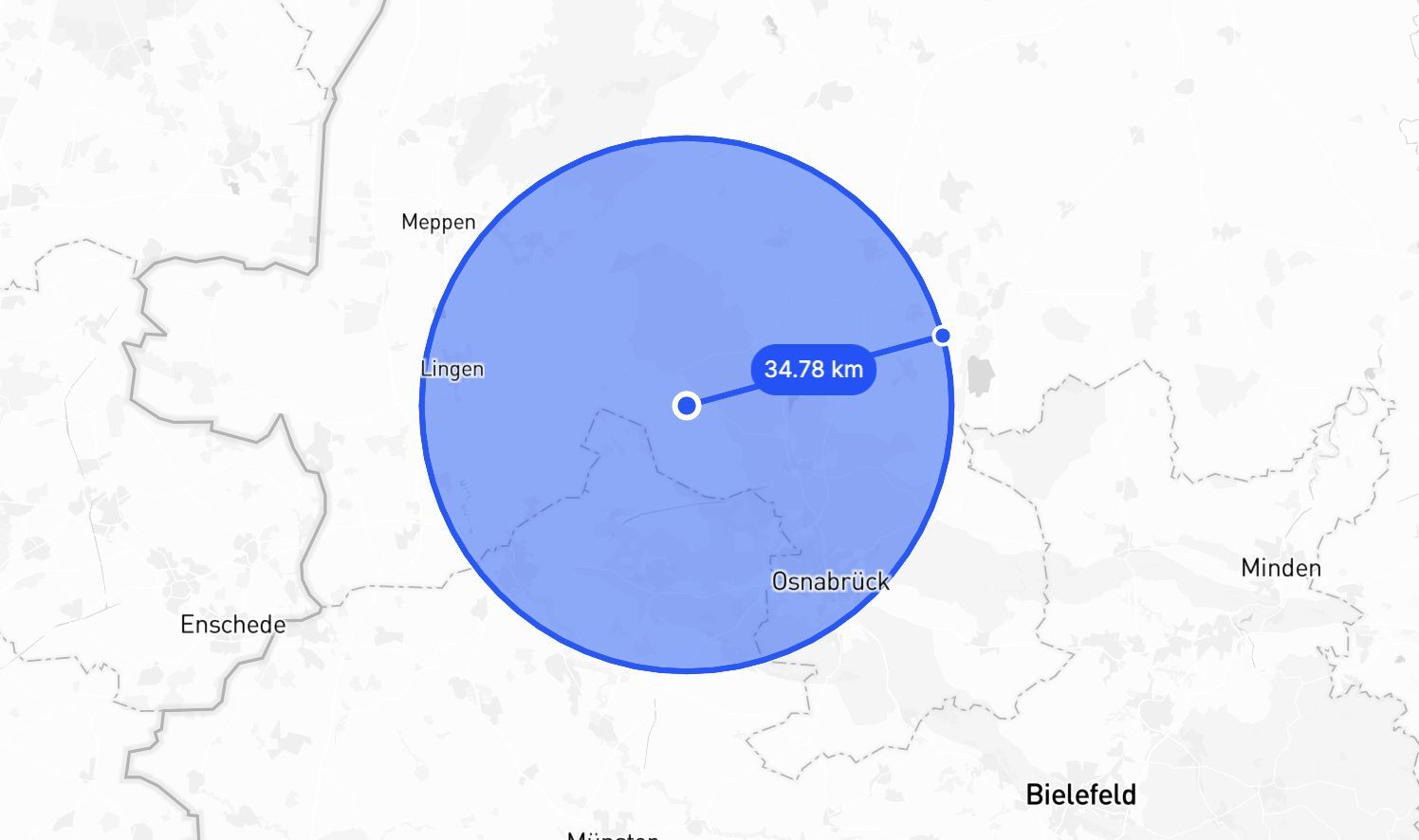
- Draw a circle by setting the center and dragging outwards.
- Ideal for visualizing buffer zones or areas around a point.
5. Rectangle R
- Draw a rectangle by clicking and dragging to define width and height.
- Use this for selecting rectangular areas or creating bounding box features.
Precision Strip
When drawing lines, polygons, circles, or rectangles, a precision strip appears above the drawing tools. Use it to enter exact dimensions instead of dragging freehand:
| Shape | Controls |
|---|---|
| Line | Length, Angle |
| Polygon | Segment length, Angle |
| Circle | Radius |
| Rectangle | Width, Height |
Type a value and press Enter to apply it. The precision strip lets you draw geometries with exact measurements rather than relying on visual estimation.
Editing and Merging Drawn Geometries
In Builder mode (embedded maps and dashboard interfaces), you can edit and combine geometries after drawing them.
Editing a drawn geometry
- Click a drawn feature to select it.
- Click Edit in the feature toolbar.
- Drag any vertex to reshape the geometry.
- Click Save to confirm your changes, or Cancel to discard them. Clicking outside the feature also saves.
Merging drawn layers
To combine multiple drawn layers into one:
- In the layer list, select the layers to merge. Hold Cmd (macOS) or Ctrl (Windows/Linux) to select additional layers, or Shift to select a range.
- Click Merge in the inline toolbar that appears.
The selected layers are permanently combined into a single layer. This action cannot be undone.
Layer naming
When you finish drawing, Atlas creates a new layer and names it by geometry type: Points 1, Lines 2, Areas 3, and so on. Mixed-geometry batches are named Drawing N. The layer name automatically enters edit mode so you can rename it straight away — or just press Escape to keep the generated name.
Tips
Press Escape at any point while drawing to cancel and discard the shape in progress — including before you have placed your first point.
If you hold SHIFT when in draw mode you can snap to edges of nearby geometries. This makes it super simple to get perfect alignments.